Mini Cards Print Template for Canva: A Simple Guide to Making the Most of It
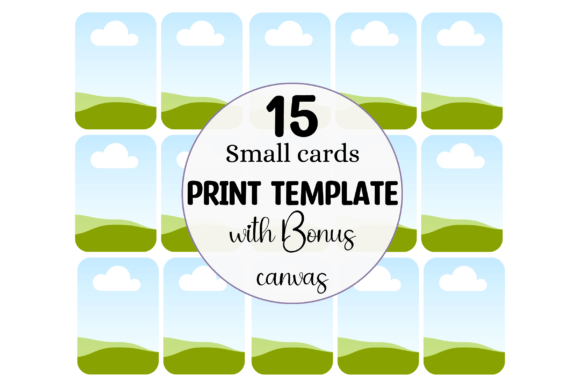
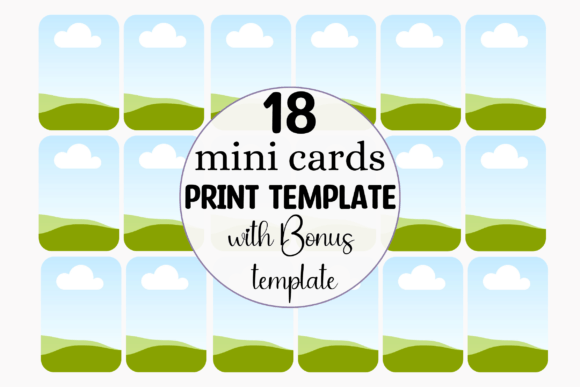
If you're looking for a flexible and creative way to design small, custom cards without needing advanced graphic skills, the Mini Cards Print Template for Canva is a smart choice. This template allows users to easily drag and drop their own images into pre-made frames, making it simple to create a wide range of mini cards — from playing cards and thank you notes to business information cards and Valentine’s Day surprises. Designed to print on standard 8.5 x 11 paper and yield 16 cards per page (each sized 1.6 x 2.3 inches), it's a convenient tool for creators who want to produce professional-looking cards quickly and efficiently.
What Is the Mini Cards Print Template for Canva?
The Mini Cards Print Template for Canva is essentially a downloadable resource that includes a PDF with links to Canva templates. These templates are designed specifically for creating mini-sized cards, which are perfect for various personal or professional uses. The bonus also includes a blank 1.6 x 2.3 inch canvas where you can design your own unique card before dragging it into the print layout. This makes it ideal for both beginners and experienced designers who want to streamline the process of card creation and printing.
Common Mistakes When Using Mini Cards Print Templates
While the Mini Cards Print Template for Canva is user-friendly, there are some common pitfalls people tend to make when using it. Here are a few key mistakes to watch out for:
1. Ignoring Sizing Requirements
One of the most frequent issues users face is not adhering strictly to the recommended dimensions of 1.6 x 2.3 inches per card. While it might seem minor, incorrect sizing can cause alignment problems when printing or assembling cards. Always ensure your designs fit perfectly within the frame to avoid any distortion or misplacement once printed.
2. Not Checking Print Quality Settings
Another mistake is assuming that digital designs will look the same when printed. High-resolution images are crucial for crisp, clear mini cards. If you use low-quality photos or graphics, they may appear pixelated or blurry in print. Before finalizing your design, double-check the image resolution and ensure it meets the minimum requirements for high-quality printing.
3. Overlooking the Layout Before Printing
Many users forget to review how their cards will be arranged on the 8.5 x 11 sheet. Each page holds 16 cards, so if one element is slightly off-center or overlapping, it can affect multiple cards at once. Use the preview feature in Canva to visualize the entire layout and adjust as needed before sending the file to print.
How These Mistakes Impact Your Results
Making these errors can lead to wasted time and materials, especially if you’re printing in bulk. Misaligned cards can require manual trimming or even re-printing, increasing costs and effort. Poor image quality can diminish the overall professionalism of your project, whether you're handing out business cards or crafting personalized thank-you notes. And an overlooked layout issue could result in inconsistent presentation across all cards, which can be distracting and reduce the effectiveness of your communication.
Practical Tips to Avoid Common Pitfalls
To get the best results from the Mini Cards Print Template for Canva, follow these practical steps:
- Stick to the size guidelines: Use the provided frames as a guide to ensure each card fits exactly within the 1.6 x 2.3 inch space.
- Use high-resolution media: Import only images and graphics that are at least 300 DPI to maintain clarity in print.
- Preview your layout: Zoom in on the full page view in Canva to confirm everything lines up correctly before printing.
- Test print first: Print a sample page on regular paper to check alignment and color accuracy before going for a larger run.
Realistic Examples and Better Approaches
Let’s say you're an educator planning to create role-play cards for a classroom activity. You might start by choosing a stock character illustration from Canva, but it doesn’t fit the frame properly. Instead of forcing it to work, try cropping or resizing the image to match the exact dimensions of the mini card. Alternatively, search Canva’s library for images already optimized for 1.6 x 2.3 inch sizes to save time and avoid formatting issues.
Or imagine you're a small business owner designing mini info cards for networking events. You might think that just placing your logo in the center is enough, but without proper margins and spacing, it could bleed off the edge after printing. To prevent this, always leave a small white border around important elements and use the grid system in Canva to align everything precisely.
Before You Start: What to Check
Before diving into your design, take a moment to verify a few things:
- Printer compatibility: Confirm that your printer supports the paper size and type you plan to use. Some laser printers handle glossy paper better than inkjet models.
- Design purpose: Ask yourself what the cards will be used for. Will they need to be folded? Will they be laminated or placed in sleeves? Adjust your design accordingly.
- File format: Ensure the final output is saved as a PDF for consistent printing across different devices and services.
- Canva version: If you're using Canva Pro features like advanced layouts or brand kits, make sure your account has access to them.
Why This Template Stands Out
Compared to other card-making tools or generic print templates, the Mini Cards Print Template for Canva offers several advantages. First, it integrates seamlessly with Canva’s intuitive drag-and-drop interface, making customization effortless. Second, the included bonus canvas allows you to build your own unique designs from scratch while staying within the correct proportions. Finally, the ability to print 16 cards per standard page ensures cost-effectiveness and efficiency, especially for those producing multiple copies.
When to Use This Template
This template is incredibly versatile and suitable for a variety of scenarios. For example:
- Creating custom playing cards for a game night or party.
- Producing personalized thank you cards for clients or customers.
- Designing small business info cards for trade shows or networking events.
- Making Valentine’s Day mini cards for a thoughtful, handmade touch.
- Developing role-play cards for educational activities or games.
In all these cases, having a reliable and well-structured template can save you hours of trial and error. Just remember to tailor your content and visuals to suit the specific use case for the best impact.
Final Thoughts on Choosing and Using the Template
The Mini Cards Print Template for Canva is more than just a quick fix — it's a valuable tool for anyone who wants to create polished, uniform mini cards without the hassle of complex software. By avoiding the common mistakes outlined here and following the suggested practices, you’ll ensure your final product looks great and functions well for its intended purpose.
Take the time to explore the included Canva links and the bonus canvas — they offer flexibility and control that many other templates lack. Whether you're an entrepreneur, educator, hobbyist, or marketer, this template can help you communicate more effectively and creatively through small, impactful designs.